

Your WordPress website represents more than just an online presence: it's the digital face of your business, housing customer data, processing transactions, and serving as a critical revenue driver. Unfortunately, this makes it an attractive target for cybercriminals who view your site as a potential gateway to valuable information and financial gain.
The statistics paint a sobering picture: Google blacklists approximately 10,000 websites daily for malware or phishing activities, while warning between 12-14 million users about potentially compromised sites. These numbers aren't just statistics: they represent real businesses suffering real consequences from preventable security breaches.
When hackers successfully compromise a WordPress site, the damage extends far beyond temporary inconvenience. Attackers steal customer information, install malicious software, redirect your traffic to competitor sites, or hold your entire website hostage through ransomware attacks. The financial impact includes lost revenue during downtime, expensive emergency repairs, legal liabilities from compromised customer data, and the long-term cost of rebuilding damaged brand reputation.
The encouraging news is that most WordPress security breaches stem from easily preventable vulnerabilities. By implementing five straightforward security measures, business owners can dramatically reduce their risk exposure and protect their digital assets from the majority of common attacks.
Step 1: Maintain Current WordPress Core, Plugin, and Theme Versions
Outdated WordPress installations serve as the primary entry point for cybercriminals seeking vulnerable targets. Security researchers continuously discover and patch vulnerabilities in WordPress core files, plugins, and themes. When you delay these updates, you essentially leave known security holes open for exploitation.
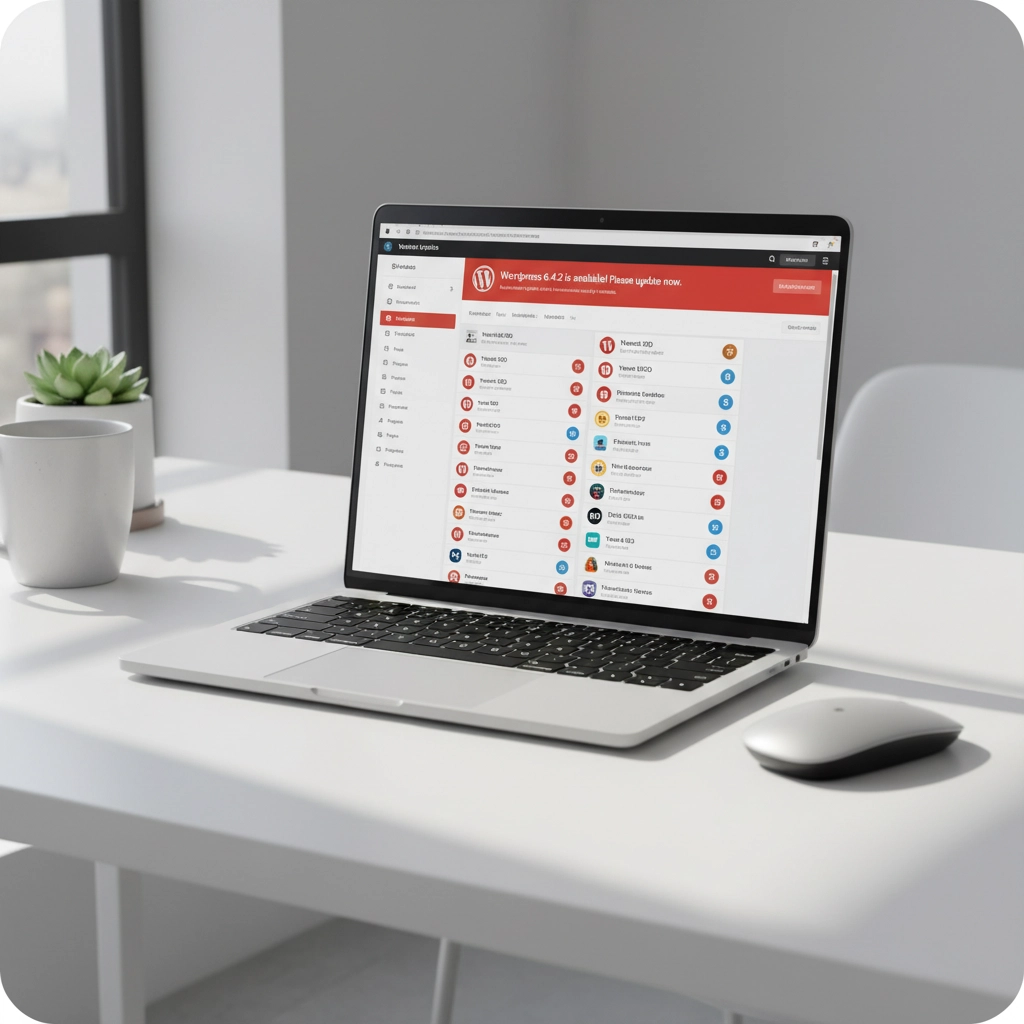
WordPress releases regular updates that include critical security patches addressing newly discovered vulnerabilities. These updates often fix serious issues that could allow attackers to gain administrative access, inject malicious code, or steal sensitive data. Running an outdated version means your site lacks these essential protections.
Plugin vulnerabilities present an even greater risk, with outdated or malicious plugins accounting for a 90% increase in successful website compromises. Attackers actively scan WordPress sites for plugins with known security flaws, making plugin management crucial for maintaining site security.
Establish a weekly routine to check for available updates across your WordPress installation. Enable automatic updates for minor WordPress core releases to ensure you receive critical security patches without delay. However, major updates should still be reviewed and tested before implementation to prevent compatibility issues with existing plugins or custom functionality.
Remove any unused plugins and themes completely rather than simply deactivating them. Inactive plugins remain on your server and can still be exploited by attackers scanning for vulnerable code. If you're not actively using a plugin or theme, delete it entirely to eliminate potential security risks.
Step 2: Deploy Comprehensive Security Plugin and Web Application Firewall
A robust security plugin combined with a Web Application Firewall creates a protective barrier between your WordPress installation and incoming traffic. This combination provides multiple layers of defense against various attack vectors, from automated bots to sophisticated injection attempts.
Web Application Firewalls filter incoming requests before they reach your WordPress core, blocking dangerous IP addresses and preventing common attack patterns like SQL injection and cross-site scripting. Modern WAF services use machine learning algorithms to identify and block threats in real-time, constantly updating their protection based on emerging attack trends.
Quality security plugins offer comprehensive protection features including real-time malware scanning, security hardening configurations, and detailed activity monitoring. These plugins maintain logs of file modifications, user registrations, plugin installations, and failed login attempts, enabling early detection of suspicious activity.
Look for security plugins that provide automated malware removal, security hardening options, and integration with reputable Web Application Firewall services. The plugin should offer customizable security rules, detailed security reports, and the ability to quarantine or remove detected threats automatically.
Configure your security plugin to perform regular deep scans of all website files, checking for malware signatures, suspicious code modifications, and unauthorized file additions. Enable email notifications for security events so you can respond quickly to potential threats, even when you're not actively monitoring your website.
Step 3: Implement Strong Authentication and Access Controls
Password-based attacks remain one of the most common methods cybercriminals use to gain unauthorized access to WordPress websites. Weak passwords, password reuse across multiple accounts, and lack of additional authentication factors create easily exploitable security gaps.

Multi-factor authentication adds a crucial second layer of protection beyond traditional passwords. Even if attackers obtain your login credentials through data breaches, social engineering, or brute force attacks, they still cannot access your account without the additional authentication factor.
Implement two-factor authentication for all user accounts with administrative privileges, including developers, content managers, and anyone with access to sensitive site functions or customer data. Use authenticator apps like Google Authenticator or Authy rather than SMS-based verification, as text message interception has become increasingly common.
Enforce strong password requirements across all user accounts, requiring a minimum of 12 characters with a combination of uppercase letters, lowercase letters, numbers, and special characters. Consider using password managers to generate and store unique, complex passwords for each account.
Apply the principle of least privilege by carefully managing user roles and permissions. Regular contributors don't need administrative access, and temporary users should have their accounts removed promptly when their access is no longer required. Review user accounts quarterly to ensure only authorized personnel maintain access to your WordPress installation.
Schedule mandatory password resets following major data breaches or security incidents affecting services you use. This practice minimizes the risk of compromised credentials being used against your WordPress site, particularly when users reuse passwords across multiple platforms.
Step 4: Establish Automated Backup Systems with Recovery Testing
Reliable backups serve as your ultimate safety net when all other security measures fail. However, simply creating backups isn't sufficient: you must also verify that these backups actually work and can be restored quickly when needed.
Configure automated backups to run daily or weekly, depending on how frequently your website content changes. Store backup files in secure, off-site locations separate from your primary hosting server. Cloud storage services like Amazon S3, Google Cloud Storage, or Dropbox provide secure, geographically distributed backup storage options.
Include both website files and database content in your backup strategy. WordPress sites consist of theme files, plugin files, media uploads, and database tables containing posts, pages, user accounts, and configuration settings. Complete backups must capture all these components to enable full site restoration.
Test your backup restoration process at least quarterly by performing partial or complete site restorations in a staging environment. This testing verifies that your backups contain all necessary files, that the restoration process works correctly, and that you can complete the restoration within an acceptable timeframe.
Document your backup restoration procedures and ensure multiple team members understand the process. During a security incident, stress levels run high and technical details can be forgotten. Clear, step-by-step restoration instructions help ensure quick recovery when every minute of downtime costs revenue.
Monitor your backup processes regularly to confirm they're completing successfully. Automated backup systems can fail silently due to server errors, storage limitations, or configuration changes. Weekly verification prevents the unpleasant discovery that your backups haven't been working when you actually need them.
Step 5: Block Brute Force Attacks Through Login Security
Automated bots continuously target WordPress login pages, attempting thousands of username and password combinations in systematic brute force attacks. These persistent attacks can eventually succeed against weak passwords while consuming server resources and creating security log noise that masks legitimate threats.
Login attempt limiting stops brute force attacks by temporarily blocking IP addresses after a specified number of failed login tries. This approach prevents attackers from making unlimited login attempts while allowing legitimate users who occasionally mistype their passwords to regain access after a brief waiting period.
Install plugins specifically designed to limit login attempts and monitor authentication activity. These plugins typically block IP addresses for increasing time periods based on the number of failed attempts, making persistent attacks impractical for cybercriminals.
Configure your login security plugin to log all authentication attempts, successful and failed, providing valuable intelligence about potential security threats. Review these logs regularly to identify patterns indicating coordinated attacks, compromised user accounts, or other suspicious activity.
Implement SSL/HTTPS encryption across your entire WordPress site to protect login credentials and other sensitive data during transmission. Redirect all HTTP requests to the secure HTTPS version and ensure your SSL certificate remains current and properly configured.
Consider changing your WordPress login URL from the default "/wp-admin" or "/wp-login.php" to a custom path. While this doesn't provide security through obscurity, it does reduce automated attack traffic against your login page and makes your logs easier to analyze.
Protecting Your Business Investment
WordPress security isn't just about preventing technical problems: it's about protecting your business investment and maintaining customer trust. A single security breach can result in weeks of lost revenue, thousands of dollars in emergency repairs, and immeasurable damage to your brand reputation.
These five security steps provide comprehensive protection against the vast majority of WordPress attacks without requiring extensive technical expertise or ongoing maintenance. Most security measures can be implemented once and then monitored through automated tools and occasional manual reviews.
However, WordPress security is an evolving challenge that requires ongoing attention and periodic updates. New vulnerabilities emerge regularly, attack methods become more sophisticated, and security best practices continue to develop as the threat landscape changes.
At Code Collaborators, we understand that busy business owners need their WordPress sites to remain secure without becoming a full-time job. Our technology consulting team specializes in implementing comprehensive WordPress security strategies that protect your business while allowing you to focus on what you do best.
Ready to bulletproof your WordPress site against cyber threats? Contact our team today to discuss your specific security needs and learn how we can help protect your digital assets from the growing threat of cybercrime.
